
Save Time by Directly Connecting MicroBiz POS to QuickBooks Online


With many retailers looking for a replacement for QuickBooks POS, MicroBiz is a great QuickBooks Point of Sale alternative. MicroBiz has a direct API integration with QuickBooks Online, the #1 cloud-based financial accounting software for small businesses, to automate your financial reporting. Setting up your MicroBiz-QuickBooks POS sync is quick and easy and only takes a few minutes.
Financial information from your MicroBiz Cloud POS system can be sent seamlessly to QuickBooks Online with a press of a button, creating an alternative to QuickBooks POS. No more downloading and uploading of files, faxing or emailing spreadsheets or manually reconciling financial data between your retail system and accounting software. All your register batch data is seamlessly published to QuickBooks Online quickly and accurately. MicroBiz is a top QuickBooks POS alternative.

MicroBiz Listed on Intuit® Developer Platform
MicroBiz is a developer on the Intuit® Developer Platform. The Intuit Developer Platform enables a complete integration with Intuit QuickBooks® Online and provides MicroBiz POS the ability to leverage advanced tools and drive growth for retail merchants. The MicroBiz POS integration shares data with QuickBooks Online, helping small retail and wholesale businesses sync their daily sales, inventory updates, and daily financial results.
The Intuit Developer platform enables developers to integrate with rich QuickBooks financial and transactional data, providing unparalleled reach to small businesses through its app store, where millions of QuickBooks Online customers go to find, try, and buy apps that meet their needs.
Publish Your Store Financials to QuickBooks in Three Easy Steps
Map Register Actvities to QuickBooks GL Accounts using Our Set Up Wizard
Connecting MicroBiz and QuickBooks is very easy and just takes a couple of minutes to set-up. First, sign into both accounts and authorize the two applications to connect and share data online. Next, use the set-up wizard in MicroBiz to map your the financial activities in MicroBiz to the appropriate GL account in QuickBooks. Synced activities include:
- Sale and Sales by category
- COGS and COGS by category
- Customer order deposits balance
- Store credit balance
- Gift card balance
- Sales tax payable
- Customer credit account balance
- Changes in inventory value
- Cash, check and card payments


Review and Approve Batch Adjustments Before Sending
After closing a register batch, pressing the green ‘Post” to QuickBooks button from the Register Batch dashboard will generate a summary of your register batch and the corresponding adjustments that will be made to the GL accounts in QuickBooks. This allows you to review the financial activity in your MicroBiz POS system before the GL accounts in QuickBooks Online are adjusted.
Batches previously posted to QuickBooks can also be review from the Register Batch dashboard.
Publish Financials QuickBooks with One Touch
Once you have reviewed the batch summary, just press the 'Publish' button and MicroBiz will instantly send the financial information to QuickBooks through a direct connection - where its automatically recorded by QuickBooks in the appropriate GL accounts.

MicroBiz Automatcally Syncs Your Retail Store Financial Data with QuickBooks Online
MicroBiz Automatically Creates Journal Entry in QuickBooks with the Register Batch Data
Using the account mappings set up in MicroBiz, a journal entry record will be automatically created in QuickBooks Online with all the relevant finiancial data from the published register batch. Sales taxes will be published to QuickBooks Online as a sales receipt, allowing you to manage the payment of sales taxes in QuickBooks. The journal entry created will reference the register batch in MicroBiz, providing the ability to easily cross reference the register batch in MicroBiz to the journal entry in QuickBooks.

MicroBiz Sends Sales Taxes Due to the QuickBooks Sales Tax Center
As part of the sync, MicroBiz creates a Sales Receipt in your QuickBooks financials. This creates a sales tax liability in QuickBooks Onlne on the sales in the MicroBiz register batch. QuickBooks then aggregates the sales tax liabilities on the register batches, allowing you to use the Sales Tax Center in QuickBooks Online to manage the filing and payment of sales taxes over the selected liability period (day, week, month). No more manually entering sales taxes in your financial accounting system.

The MicroBiz-QuickBooks Online Sync Can Also Sync Vendor Shipments to QuickBooks Online
Automatically Create a Vendor Bill Payable in QuickBooks When Receiving Goods in MicroBiz
When receiving goods from a vendor to add to inventory, you can sync the vendor shipment received in MicroBiz to QuickBooks as a vendor bill payable. This does three things in QuickBooks:
1) Creates a Vendor Bill Payable for Total Amount of Shipment
2) Expenses any Shipping and Misc costs on the Shipment
3) Adjusts Inventory Value by the value of goods on the Shipment
This allows you to keep track of and make payments amounts due to Vendors from your QuickBooks POS accounting application on from on receipt of inventory in MicroBiz.

Benefits of a POS System Sync with QuickBooks Online

Automate Your Financial Reporting Process
MicroBiz publishes data to QuickBooks quickly and accurately. The direct transfer process creates an audit trail and eliminates errors caused by copying data incorrectly from one system to another. Your integrated QuickBooks-POS system makes auditing work easy.
Sync Category Level Sales and COGS Data
MicroBiz includes a mapping engine that provides additional flexibility to link your store data to your GL accounts in QuickBooks. You can map and sync a variety of sales accounts (sales and cost of goods sold by category, cash in/out), inventory, customer liabilities (order deposits, store credits, gift cards), payment methods (cash, check, credit card, etc.) and sales taxes (by location and jurisdiction) using this advanced mapping wizard.

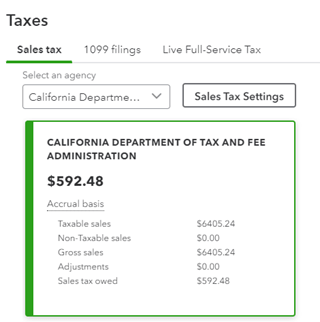
Track and Pay Sales Taxes Directly from QuickBooks
When you publish financial data to QuickBooks, the sales tax data appears in the QuickBooks Sales Tax Center. This allows you to track and pay sales taxes directly from QuickBooks Online.
Sync Financial Data Across Multiple Store Locations
The MicroBiz POS – QuickBooks online integration supports multiple retail locations. You can set up different tax rates for different stores and tag financial data by store location in QuickBooks, allowing you to better track financial performance and pay taxes by store. MicroBiz also supports multiple registers in each store.

Great QuickBooks POS Alternative

Intuit has announced that it is no longer supporting its QuickBooks Point of Sale software, forcing many retailers and resellers to find an alternative to QuickBooks POS software. With its sync to QuickBooks Online, MicroBiz offers a great QuickBooks POS alternative. If you are looking for a QuickBooks POS replacement for your store or a client's retail business, please give us a call. We have many great features for retailers seeking to switch from QuickBooks POS to a new cloud-based POS system.
Frequently Asked Questions
Does the POS sync automatically with QuickBooks Online, or do I have to manually import/export data? +
MicroBiz uses a one-touch publish model rather than automatic background syncing. At the end of each register batch, you press a single button to publish your financial data directly to QuickBooks Online. This gives you control over when data is sent while eliminating the need to download files, upload spreadsheets, or manually re-enter data in QuickBooks.
What financial data gets sent to QuickBooks — just sales totals, or does it break out by revenue, COGS, taxes, and payment type? +
MicroBiz sends a comprehensive financial summary to QuickBooks with each register batch publish. This includes gross sales revenue, cost of goods sold, inventory values, customer liabilities, payment type breakdowns, and sales tax collected. This level of detail gives your accountant a complete picture of each batch without requiring any manual reconciliation.
Can I map my POS sales categories to specific GL accounts in QuickBooks? +
Yes. MicroBiz allows you to map your POS financial activities to specific GL accounts in your QuickBooks Online chart of accounts. This means your sales, returns, discounts, taxes, and payment types can each be directed to the correct account, keeping your books organized the way your accountant expects them.
Does the POS create vendor bill payables in QuickBooks when I receive inventory from suppliers? +
Yes. When you receive a vendor shipment in MicroBiz, you can automatically create a corresponding vendor bill payable in QuickBooks Online. This eliminates the need to manually enter supplier invoices in QuickBooks and keeps your accounts payable current without double data entry.
How does the POS handle sales tax syncing with QuickBooks — does it push tax collected to the QuickBooks Sales Tax Center? +
Yes. MicroBiz pushes sales tax liabilities directly to the QuickBooks Sales Tax Center. This means your tax collected is automatically reflected in QuickBooks for payment management, eliminating the need to manually calculate or transfer tax figures at the end of each period.
If I process a return or void in the POS, does that automatically adjust the data in QuickBooks? +
Returns and voids processed in MicroBiz are captured within the register batch data that gets published to QuickBooks. When you publish a batch, the net figures — including any returns or voids processed during that batch period — are reflected accurately in QuickBooks, keeping your books in balance without manual adjustments.
Does the integration support multiple registers or locations — and can I see each register's financials separately in QuickBooks? +
Yes. MicroBiz supports multiple registers and multiple store locations. Each register generates its own batch, and you can publish batch data from all your registers to QuickBooks. This allows you to track financial performance by register or location within QuickBooks, giving you the visibility you need to manage a multi-location retail operation.
Do I need to manually reconcile my POS data with QuickBooks, or does the integration keep them in sync automatically? +
The one-touch publish model in MicroBiz significantly reduces the need for manual reconciliation. Because the batch publish sends a structured, mapped financial summary directly to your QuickBooks GL accounts, the data arrives in QuickBooks clean and organized. Most MicroBiz users find that their end-of-period reconciliation process is dramatically faster compared to systems that require manual data entry or file imports.
Does this work with QuickBooks Desktop? +
No. MicroBiz integrates with QuickBooks Online only and does not support QuickBooks Desktop. If you are currently using QuickBooks Desktop, you would need to migrate to QuickBooks Online to take advantage of the MicroBiz integration. QuickBooks Online is Intuit's primary platform going forward, and many retailers have found the migration to be straightforward with the help of their accountant.
Does this sync transaction-level information so I can manage credit accounts in QuickBooks? +
MicroBiz manages customer credit accounts and accounts receivable natively within the POS system, including charge-to-account transactions, payment tracking, AR aging, and statement generation. The QuickBooks integration publishes summary-level financial data including customer liabilities rather than individual transaction records. For retailers who need to manage credit accounts day-to-day, MicroBiz's built-in AR tools are designed to handle that workflow directly, with the financial totals flowing to QuickBooks as part of each batch publish.
Want to learn more?
Sign up for a free trial store. No credit card required.
Schedule a one-on-one online demo with a sales rep.
Submit a question or request using a web form.
Or call our sales department at 702 749-5353 option 2